
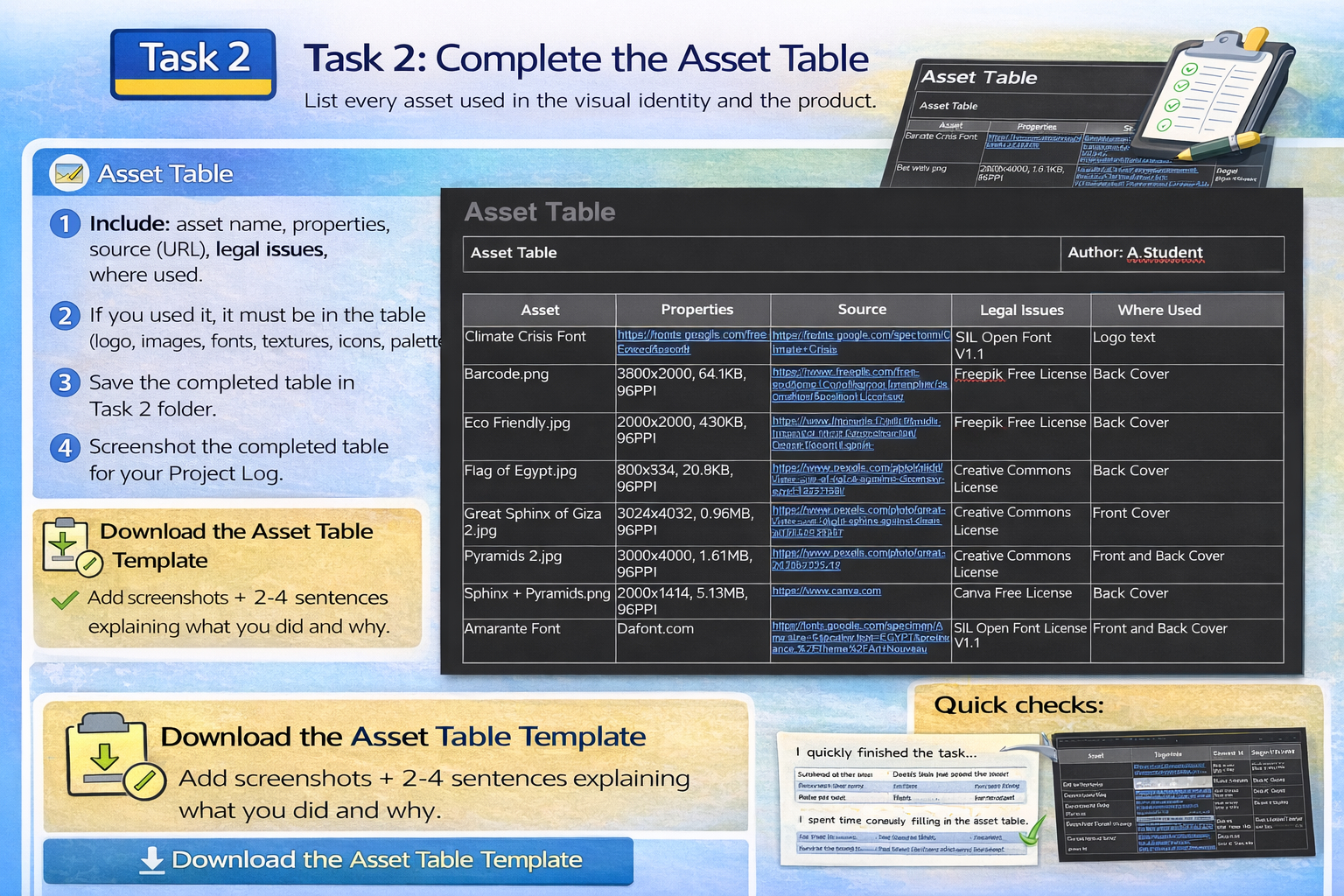
Task 2: Complete the Asset Table
List every asset used in the visual identity and the product.
Keep your Project Log updated
Screenshot as you work
Link back to brief + audience
Asset Table
- Include: asset name, properties, source (URL), legal issues, where used.
- If you used it, it must be in the table (logo, images, fonts, textures, icons, palette).
- Save the completed table in the Task 2 folder.
- Screenshot the completed table for your Project Log.
Project Log evidence:
Add screenshots + 2–4 sentences explaining what you did and why. If it isn't in the log, it doesn't exist.
Quick checks
- Does this link back to the client brief?
- Does this suit the target audience?
- Have you taken screenshots during the process?
- Is your work saved in the correct folder (Task 1 / Task 2)?
Common mistake:
Only adding the final outcome. Marks come from your process and explanations.
Completing the Sources Table
Watch this walkthrough to complete the sources table correctly.
Asset table walkthrough (properties, sources, legal constraints, where used)
Use this video to help you fill in every column correctly and avoid the common mistakes.
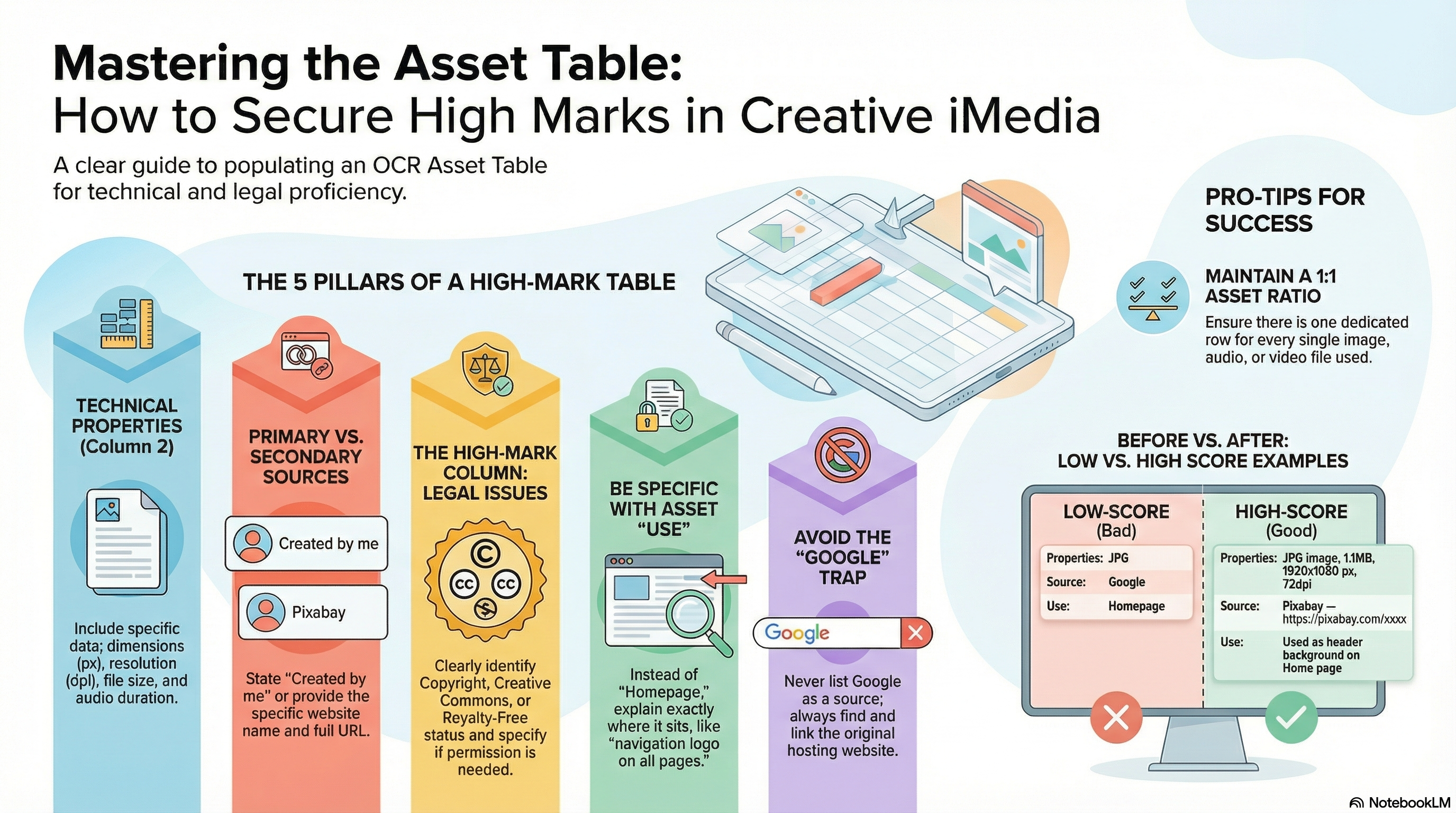
Asset table guidance slides (PDF)
Open the slides below (or download them) and use them as a checklist while completing your asset table.