Image files are used in almost every media product: posters, websites, apps, games and
social media campaigns. In R093 you must choose the right file type, resolution
and compression for each purpose.
What Are Image Files?
Image files store visual information that can be displayed on screens or printed. Different image formats
are suitable for different tasks, such as web graphics, photographs, logos and high-quality print.
Raster (bitmap) images – made of pixels (e.g. photos, screenshots).
Vector images – made of lines and shapes using maths (e.g. logos, icons).
Common formats you need to know: JPEG, PNG, GIF,
SVG, and sometimes TIFF or RAW.
Why Image Files Matter in the Exam
Questions often ask you to choose a file type and justify your choice.
You may need to link image properties to print vs web or mobile vs desktop.
Image files link closely to file compression and distribution topics.
Image Files at a Glance
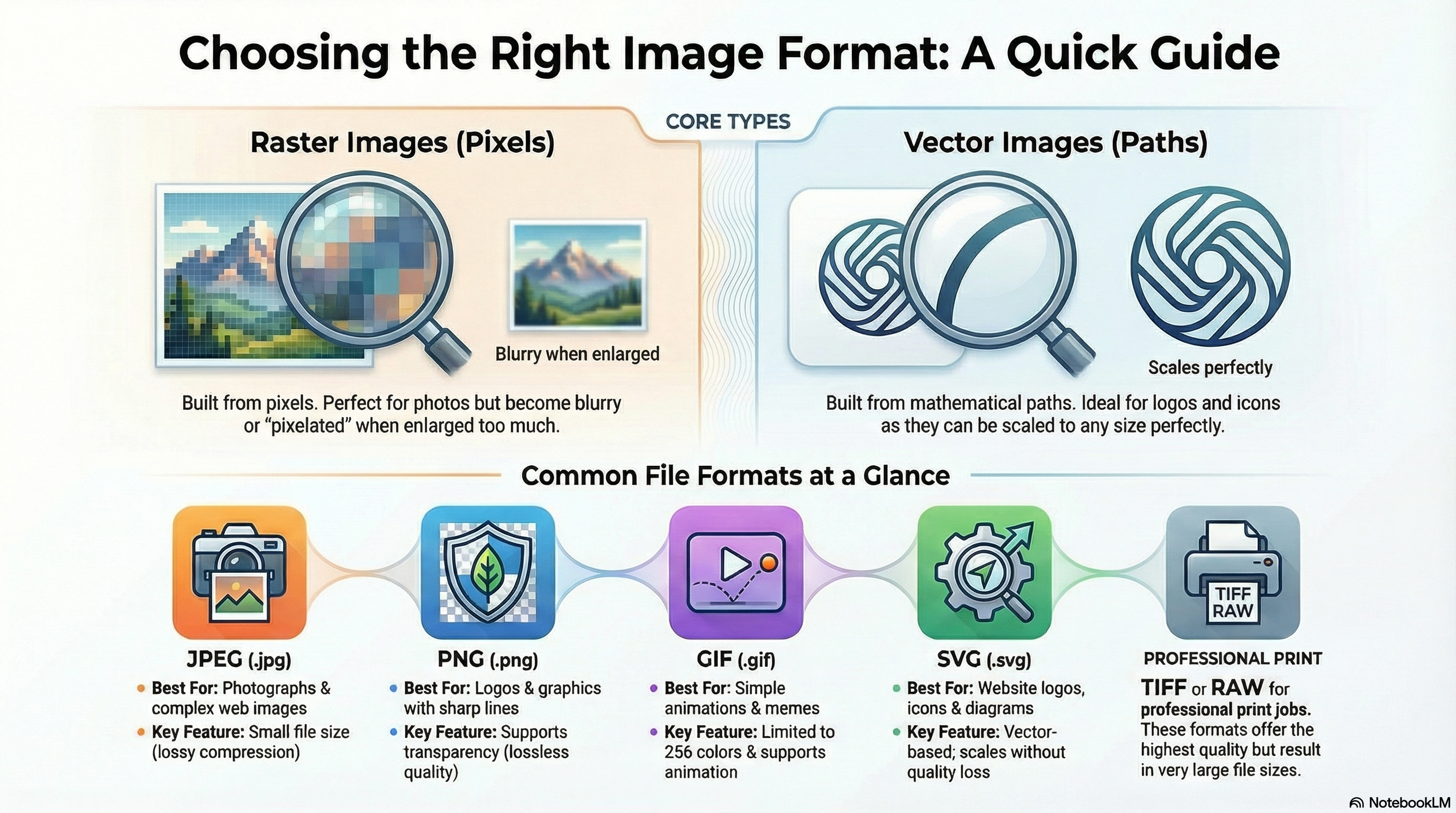
This infographic lists common image formats and helps you choose the right one for each use case.
Common Image File Types
Raster vs vector and what each format is best for.
JPEG/JPG: lossy, good for photos and web images with gradients.
PNG: lossless, supports transparency, good for logos and UI elements.
GIF: supports simple animation, limited to 256 colours.
SVG: vector-based, scalable without losing quality – ideal for icons and logos.
TIFF/RAW: high-quality formats used in professional photography and print.
Exam link: state which format you would use and explain why it is suitable.
Raster · Vector · Transparency
Resolution, Quality & Use Cases
Factors that influence file size and image quality.
Resolution: measured in pixels (e.g. 1920×1080) and DPI for print.
Compression level: higher compression reduces file size but may add artefacts.
Web use: smaller JPEG/PNG images optimised for fast loading.
Print use: high-resolution, low-compression images for crisp output.
Transparency & overlays: choose PNG or SVG when backgrounds must be see-through.
Exam tip: link your choice of file type to resolution, quality and how the image will be used.
Resolution · Quality · Purpose
Raster vs Vector Graphics
Understanding the difference between raster and vector graphics helps you pick the right format.
Raster (Bitmap) Images
Made from a grid of pixels.
Examples: digital photos, scanned images, detailed artwork.
Quality depends on resolution – if you scale up too far, the image becomes pixelated.
Common raster formats: JPEG, PNG, GIF, TIFF.
Vector Images
Made from paths, shapes and lines defined by maths.
Can be scaled to any size without losing quality.
Ideal for logos, icons, diagrams and simple illustrations.
Common vector formats: SVG, AI, EPS (know SVG at GCSE).
Choosing Raster or Vector
Use raster for detailed photos and complex artwork.
Use vector for logos and designs that must scale and stay sharp.
Image Properties: Resolution, Colour Depth and Transparency
Image properties affect both quality and file size. You must be able to
describe these and link them to different uses.
Resolution
Measured in pixels (e.g. 1920×1080) or DPI/PPI for print.
Higher resolution = more detail but larger file size.
Print usually needs higher DPI than web images.
Colour Depth
Number of bits used per pixel to store colour information.
Higher colour depth = more colours and smoother gradients.
Also increases file size.
Transparency
Some formats support transparent areas (e.g. PNG, GIF, SVG).
Useful for logos and UI elements that must blend with backgrounds.
JPEG does not support transparency.
Common Image File Formats and When to Use Them
JPEG (.jpg/.jpeg)
Lossy compression – smaller files with some quality loss.
Good for: photographs and complex images on websites.
Not good for: text or logos that need sharp edges, or transparency.
PNG (.png)
Lossless compression – keeps sharp details.
Supports transparency.
Good for: logos, UI elements, graphics with text or flat colours.
File size often larger than JPEG.
GIF (.gif)
Limited to 256 colours.
Supports simple animation and transparency.
Good for: simple animated icons or memes, not high-quality photos.
SVG (.svg)
Vector format – scales without losing quality.
Great for: logos, icons and scalable graphics on websites.
Not used for detailed photos.
TIFF / RAW
Very high-quality formats used in photography and print.
Large file sizes – not usually used for web distribution.
Use the NotebookLM for this topic to revise raster vs vector, file types, resolution, colour depth
and transparency, then test yourself with quick questions.
These games help you choose the right image formats and design choices, and link them to real briefs
and exam-style questions.
Product design
Colour Critic
Evaluate logos, posters and adverts, focusing on colour, typography and image choices to decide
which design communicates best.
MCQsColourTypography
Mega game · File types
File Types Forge
Pick the best image formats and compression levels for different products, including web banners,
app icons and printed posters.
Mega gameFormatsCompression
Distribution
Distribution Dash
Match client briefs to the best platforms and image formats, thinking about resolution and file size
for web, mobile and print.
MCQsFormatsPlatforms
All topics
iMedia Genius
Tackle mixed R093 questions, including choosing suitable image types and justifying decisions
in full exam-style questions.
Exam-styleWhole specMixed difficulty
Image optimisation
Website Asset Inspector
Inspect mock web pages for problems with images, filenames, resolution and optimisation for different devices.
Arcade quizImage qualityWeb use
Exam Practice – Image Files (AI Marker)
Write your answers in the boxes below, then click Build & Copy AI Marking Prompt. Choose an AI tool and paste the prompt to get examiner-style marking and feedback.
Q1. State one advantage of using a JPEG image on a school website. (1 mark)
Technique: Give a simple advantage such as "small file size so pages load faster".
Q2. Explain one reason why a designer might choose a PNG file instead of JPEG for a logo. (2 marks)
Technique: Make one point about transparency or sharp edges, then explain how this
helps the logo work better on different backgrounds.
Example structure: "PNG is used because… This helps because…"
Q3. Describe three factors that should be considered when preparing images for a printed magazine cover. (3 marks)
Technique: Give three distinct factors such as resolution/DPI, colour quality
and file format suitable for print.
Q4. Explain two problems that could occur if a large poster is printed from a low-resolution image taken from a website. (4 marks)
Technique: For each problem, describe what happens (e.g. pixelation, blurry text)
and explain how this affects the audience's impression of the product or brand.
Q5. A company is creating a campaign that uses images on social media, a website banner and large
printed posters. Discuss how the media team should choose image file types, resolutions and compression
settings for each platform to keep quality high and file sizes manageable. Provide justified
recommendations. (9 marks)
Technique: Organise your answer into paragraphs (social media, website, print). For each,
recommend file types and settings and explain how they suit the platform and audience. Finish with a
justified conclusion.
Paragraph 1: Social media – suitable formats, resolution and compression for fast loading.
Paragraph 2: Website banner – balance quality and file size for different screen sizes.
Paragraph 3: Printed posters – high resolution and suitable print formats.
Final paragraph: Conclusion – justify the overall image strategy.
Level 2 → Level 3 Boost (Q5)
As you type, this will spot what's missing for top-band answers.
Start typing your answer to see tailored targets.
Open an AI tool:
Can You Now…?
Explain the difference between raster and vector images.
Describe key image properties such as resolution, colour depth and transparency.
Choose suitable image file types for different products and platforms and justify your decisions.
Apply image file knowledge to exam-style scenarios and extended answers.