Movement, transitions and interactivity are key to how users navigate,
understand and enjoy digital media products. Good motion design
makes interfaces feel smooth, responsive and easy to use.
What Are Movement, Transitions and Interactivity?
In R093 you need to understand how movement (on-screen motion),
transitions (how one screen or scene changes to another) and
interactivity (how users control and respond to the product) are used
as part of the design.
These elements affect how the user feels and how easy it is to achieve their goals in a product
such as a website, app, game or interactive video.
Key Terms You Should Know
Movement – animation, scrolling, motion graphics and on-screen elements changing position.
Transitions – fades, slides, wipes and other effects between screens, scenes or sections.
Interactivity – buttons, menus, hotspots, links, forms and in-game controls.
User feedback – visual, audio or haptic responses when the user interacts (hover states, clicks, sounds).
Why They Matter in the Exam
You may need to describe how movement or transitions are used in a given product.
You may be asked to justify interactive features for a target audience.
Longer questions can ask you to recommend and explain suitable transitions and interactive elements.
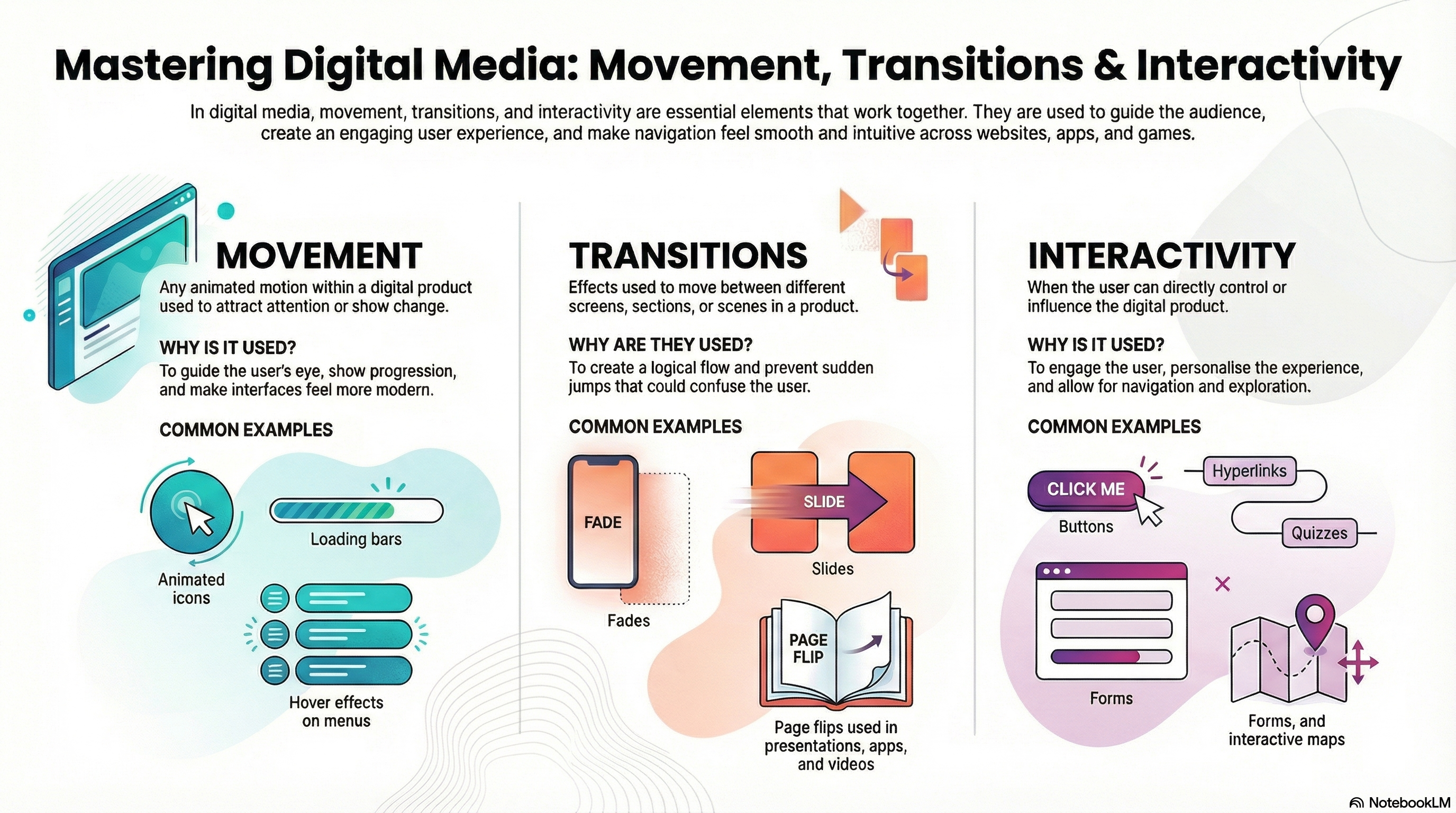
Movement, Transitions & Interactivity at a Glance
This infographic shows how motion, screen changes and interactive elements improve usability and
audience engagement.
Movement & Transitions
How screens and scenes change in a way that feels smooth and clear.
Movement: scrolling, parallax, animated icons and motion graphics.
Scene transitions: cuts, fades, wipes and dissolves between shots or screens.
Feedback: hover states, button presses and loading animations.
Pacing: faster movement for energy and excitement, slower for calm or serious content.
Clarity: transitions should help users understand where they have come from and where they are going.
Exam link: explain how a specific movement or transition makes a product easier to follow or more engaging.
Flow · Feedback · Pacing
Interactivity & User Control
How users make choices and control the product experience.
Navigation: menus, buttons, icons and links that are easy to spot and use.
Input methods: touch, mouse, keyboard, controller and voice commands.
Interactive elements: quizzes, hotspots, branching paths, sliders and carousels.
Accessibility: clear focus states, keyboard navigation and readable targets.
Engagement: rewards, progress indicators and branching choices to keep users interested.
Exam tip: describe how interactivity helps users achieve goals quickly and enjoyably.
Control · Navigation · Engagement
Movement – How and Why Things Move On Screen
Movement can draw attention, show relationships between elements and make a product feel alive.
It must be used carefully so it helps the user rather than distracting them.
Types of Movement
Scrolling – vertical or horizontal movement of content (web pages, galleries).
Effect: lets the user explore more information in a natural way.
Animated icons or buttons – icons that pulse, bounce or highlight.
Effect: draws attention to key actions such as "Play", "Buy now" or "Start quiz".
Motion graphics – text and shapes that move to introduce sections or explain ideas.
Effect: makes information clearer and more engaging, especially in explainer videos.
Character or object animation – movement in games or interactive stories.
Effect: makes the world feel responsive and fun to interact with.
Good Practice for Movement
Movement should support the purpose of the product and not just look "cool".
Too much movement can be distracting or make it hard to read text.
Speed of movement should be tested so it feels smooth and readable on different devices.
Transitions – Changing Screens and Scenes Smoothly
Transitions control how the user moves from one screen, scene or section to another. They help show
that something has changed and can make navigation feel more polished.
Common Transition Types
Cut – an instant change between scenes or screens.
Effect: feels quick and direct; often used in fast-paced content.
Fade – one scene gradually appears or disappears.
Effect: smooth and calm; good for beginning or ending sections.
Slide – new content moves in from one side of the screen.
Effect: suggests the user is moving to a new page or tab in a clear direction.
Wipe – one scene pushes or reveals another.
Effect: can feel playful or stylised; used in some video edits and slideshows.
Transitions and User Experience (UX)
Consistent transitions help users learn how the product behaves.
Slow or over-the-top transitions can annoy users and waste time.
Short, clear transitions give feedback that their action has worked (e.g. moving to the next question in a quiz).
Interactivity – Letting the User Take Control
Interactivity is any point where the user can input something or make a choice and the
product responds. Interactive features must be clear, easy to use and suitable for the chosen audience.
Examples of Interactive Elements
Buttons and icons – play, pause, next, back, like, share.
Navigation menus – top menus, side menus, burger menus and tabs.
Forms and text fields – sign-ups, search bars, contact forms.
Hotspots – clickable areas on images or diagrams.
Game controls – keyboard, mouse, controller or touch gestures.
Feedback and Accessibility
Visual feedback – hover states, colour changes, animations on click.
Games to Practise Movement, Transitions and Interactivity
These games help you think carefully about how users move through a product, how screens change
and how interactive elements should be explained in exam answers.
Interactive media
Interface Inspector
Review different interface layouts and decide which movement, transitions and interactive elements
work best for the target audience.
ExplainUXNavigation
Product design
Media Codes Challenge
Identify where movement and transitions are used as technical codes and explain how they affect
the audience's experience.
ExplainCodes & conventionsMotion
Mixed exam
Explain It! 2-Mark Engine
Practise writing short 2-mark explanations about why a particular transition or interactive feature
has been used.
2 markersPEE structureUX & UI
Mixed exam
Exam Styles Showdown
Compare different student answers about interactive features and pick the one that would
achieve the highest marks.
Exam-styleCommand wordsModel answers
Exam Practice – Movement, Transitions and Interactivity (AI Marker)
Write your answers in the boxes below, then click Build & Copy AI Marking Prompt. Choose an AI tool and paste the prompt to get examiner-style marking and feedback.
Q1. State one example of interactivity on a website homepage. (1 mark)
Technique: Give a specific example such as a navigation menu, search bar, play button or sign‑up form.
Q2. Explain one reason why a mobile app might use a slide transition between screens. (2 marks)
Technique: Make one clear point about how the slide effect helps the user (e.g. shows direction or progress)
and explain its impact.
Example structure: "A slide transition is used to… This helps the user because…"
Q3. Describe how movement could be used on a revision website to draw attention to a new quiz. (3 marks)
Technique: Describe at least one type of movement (e.g. pulsing button, banner animation) and explain
how it encourages users to notice and click the quiz.
Q4. Explain two ways that interactive elements can improve the user experience of an online game menu. (4 marks)
Technique: Give two separate interactive features (e.g. hover highlights, quick‑start button) and for each,
explain how they make the menu easier or more enjoyable to use.
Q5. A college wants to create an interactive course guide app for future students. Discuss how movement,
transitions and interactive features could be used to make the app engaging and easy to navigate.
Provide justified recommendations. (9 marks)
Technique: Organise your answer into paragraphs for movement, transitions and interactivity.
Link each design choice to the needs of future students (clear information, easy navigation, confidence using the app)
and finish with a justified conclusion.
Paragraph 1: Movement – animated icons, scrolling sections and how they highlight key content.
Paragraph 2: Transitions – fades or slides between sections to show progress through the guide.
Paragraph 3: Interactivity – menus, search, bookmarks and feedback messages.
Final paragraph: Conclusion – which combination will be most effective and why.
Level 2 → Level 3 Boost (Q5)
As you type, this will spot what's missing for top-band answers.
Start typing your answer to see tailored targets.
Open an AI tool:
Can You Now…?
Define movement, transitions and interactivity in the context of digital media products.
Give examples of how movement and transitions affect the user experience.
Explain how interactive elements and feedback help users achieve their goals.
Use movement, transitions and interactivity in exam answers with clear explanation and justification.